
Adding bookmarks
There are two ways to add a bookmark. From within the app, and while you are browsing using the Bookmarklet. See the Bookmark Color Selector as well to change your bookmarks color when adding or editing afterwards.
Bookmarklet
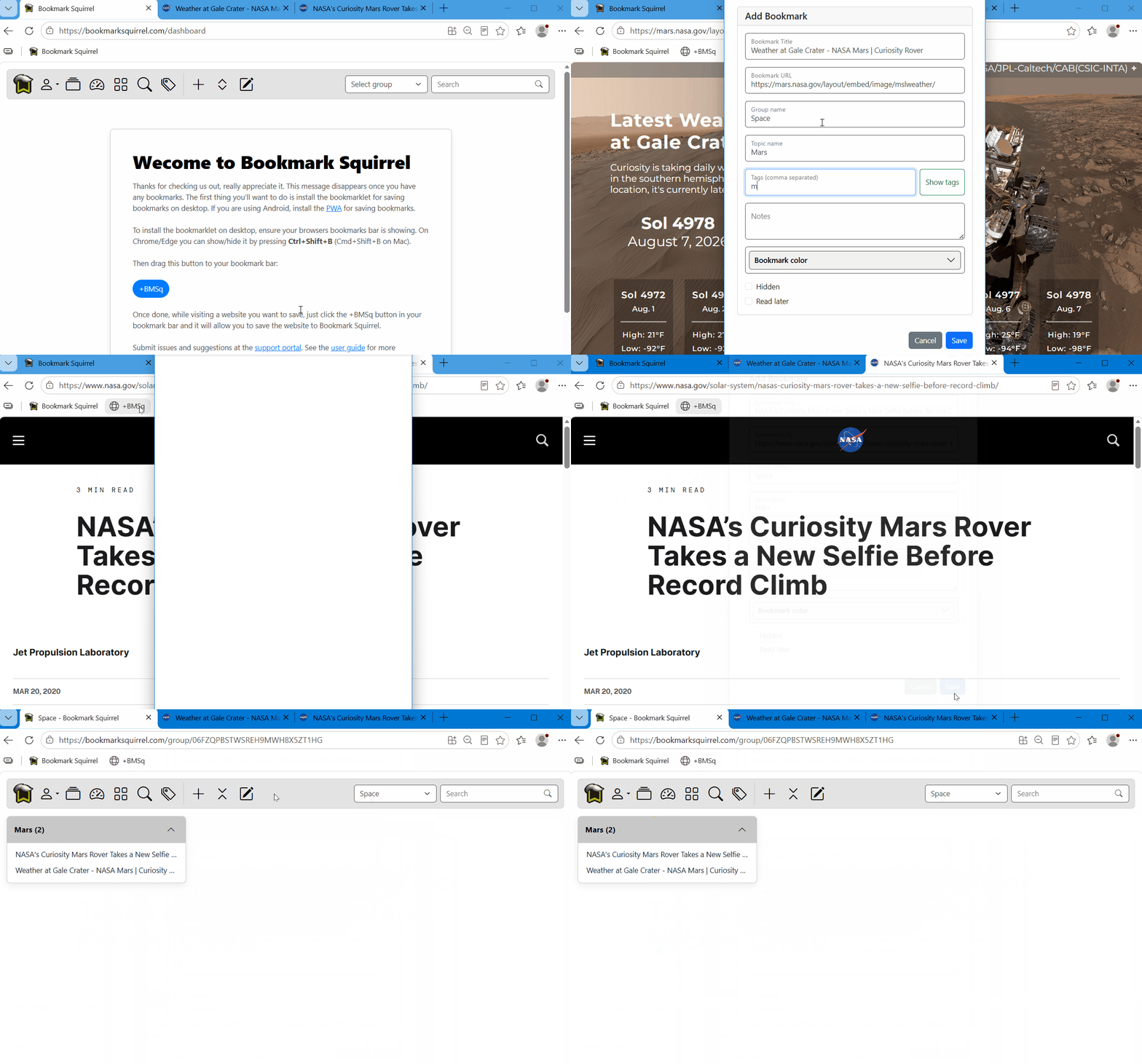
To install the Bookmark Squirrel bookmarklet so you can bookmark a site with a single click while browsing, ensure your browsers bookmarks bar is showing. On Chrome/Edge you can show/hide it by pressing Ctrl+Shift+B (Cmd+Shift+B on Mac).
Then drag this button to your bookmark bar:
+BS
Visit any page and click it to open Add Window with the page title + URL filled in.
Adding bookmarks on Mobile is done in the Progressive Web App (PWA). As a work around, I either add them from within the app, or I store the bookmark in my Mobile bookmarks, then when I get back to my desktop, I bring them up and add them.
From within the app
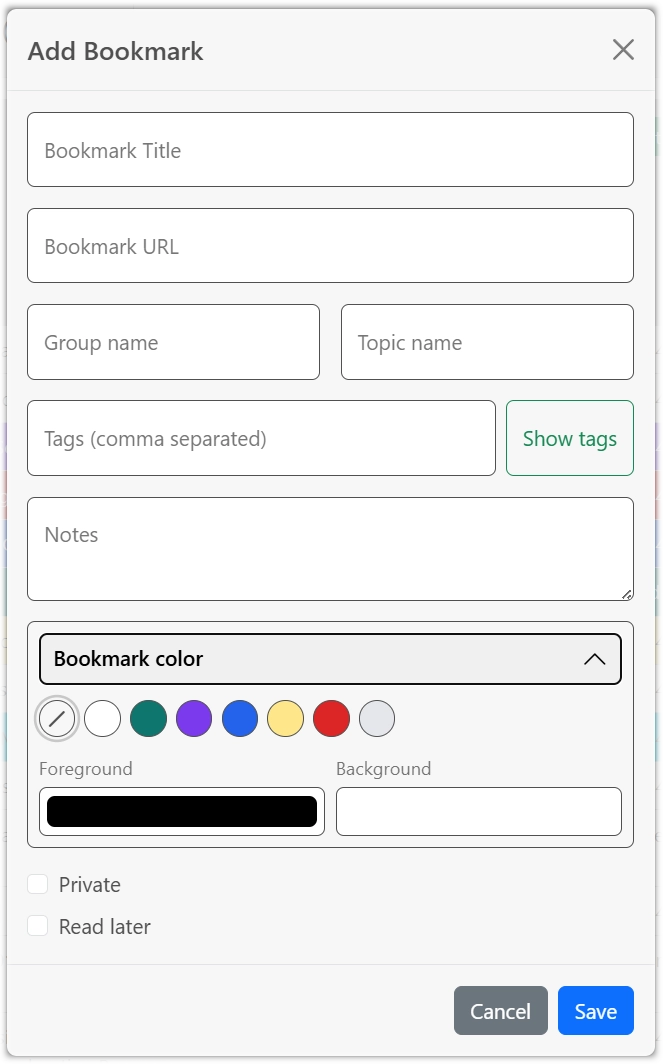
From within the app, click the Add button. You will see an add bookmark dialog appear. Enter the title and URL, and any navigation details you want. You can also add a note about the bookmark to make it easier to remember what the page contained. You can also mark it Hidden. The Tags is an important field. This is what makes it easy to group bookmarks similar, or loosely similar subject matter. You can tag it with more then one word by separating it with a comma. A good naming convention to use is one singular word. Like asset instead of assets. If you need two words, use a dash like classic-twinstick instead of classic twinstick.