
Progressive Web App (PWA)
Bookmark Squirrel (BMSq) can be installed as a Progressive Web App (PWA) on mobile devices. This allows you to use your devices Share feature to save bookmarks directly to BMSq. You can also use it to view and manage your bookmarks and open the links right from the app. The experience is the same as the web version, but with the PWA installed, you can add bookmarks via the Share feature of your mobile browser.
Android devices
Install
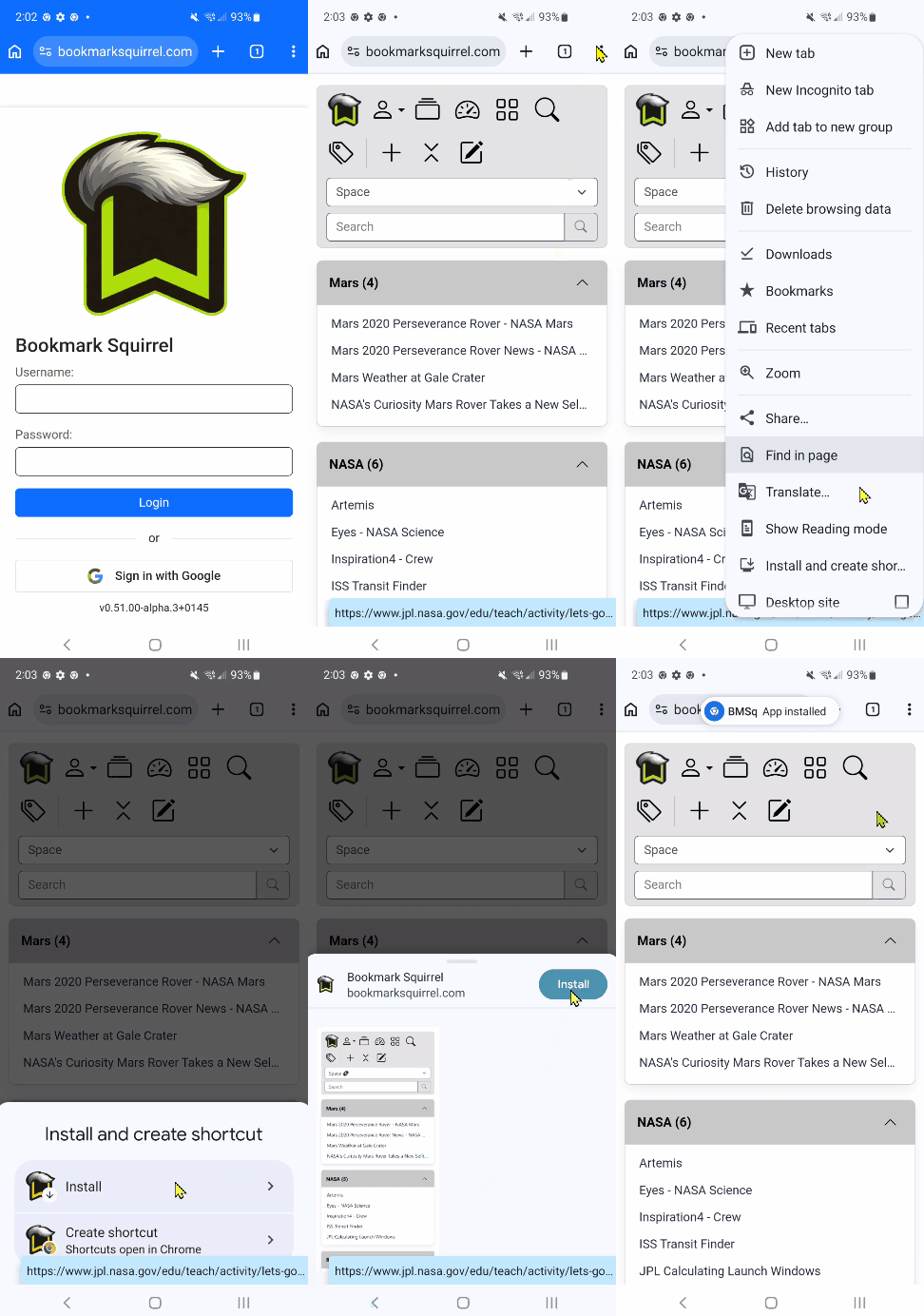
Assuming you are using Chrome, if you are not prompted at the bottom of the screen to install BMSq, you can click the Three-dot menu button > Add to Home screen > Install. You should get a small preview screen, and you can tap the Install button there. You will be notified when the app was installed to your home screen. See the video below.
Be sure you are logged in before installing. It's not required, but it does smooth the process.
Add bookmark
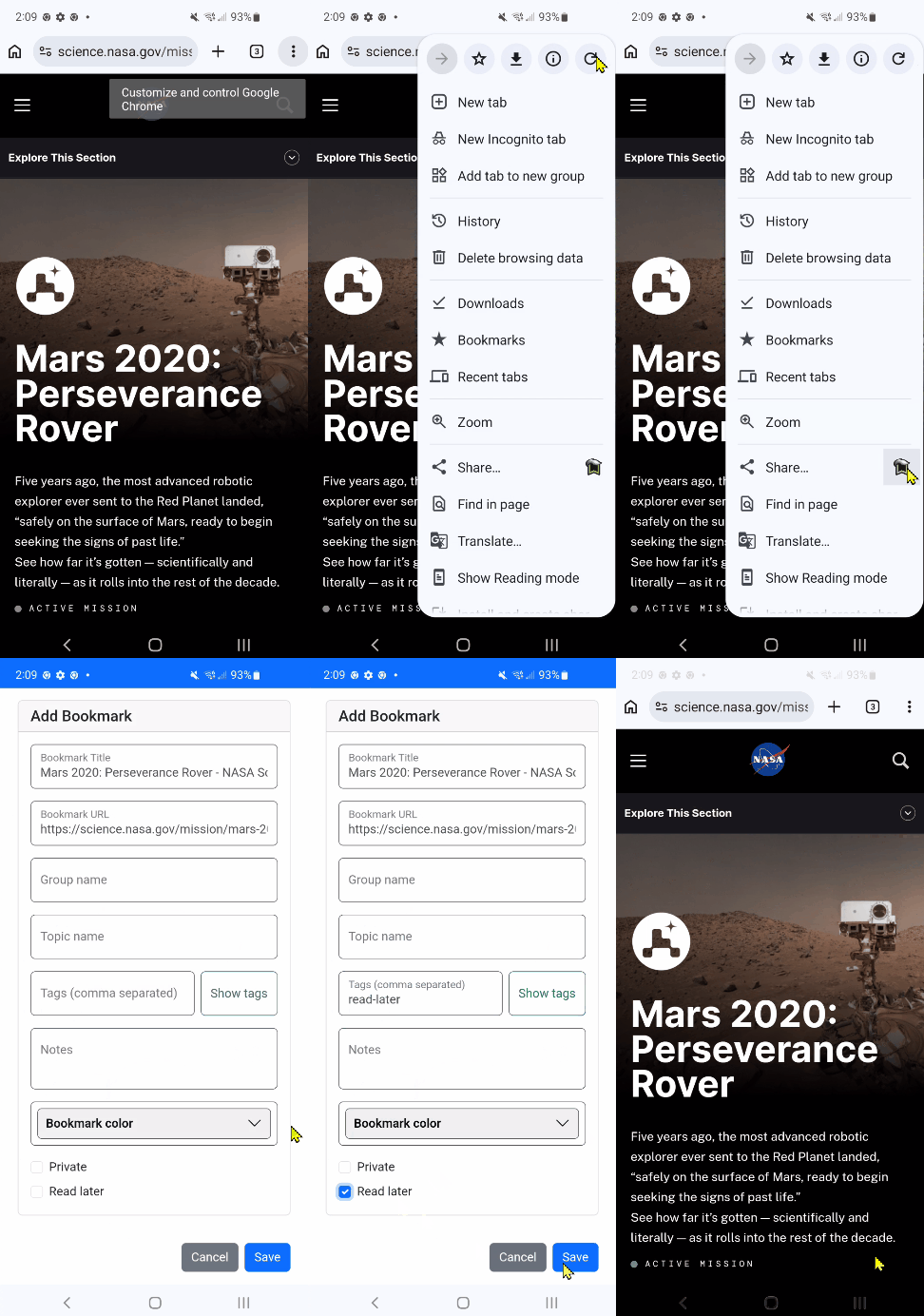
Once BMSq is installed, you can add bookmarks by using the Three-dot menu > Share. The first time you do this, after clicking Share, tap the More icon in the lower right, and find BMSq in the list of Apps. Once you tap BMSq it should launch and show the Add Bookmark screen. Add any tags you want, then click Save. The next time you can click the BMSq icon next to Share.

The next time you go to share, you should see a BMSq icon that you can tap and it will go right to the add bookmark screen.
Apple devices
Apple devices can be used to browse your bookmarks using the PWA, but you might not be able to use the share bookmark. You can still add bookmarks by copying the URL, switching to the BMSq app, tapping the Add "+" icon, then pasting the URL.
More info when available.