
Reordering Topics and Bookmarks
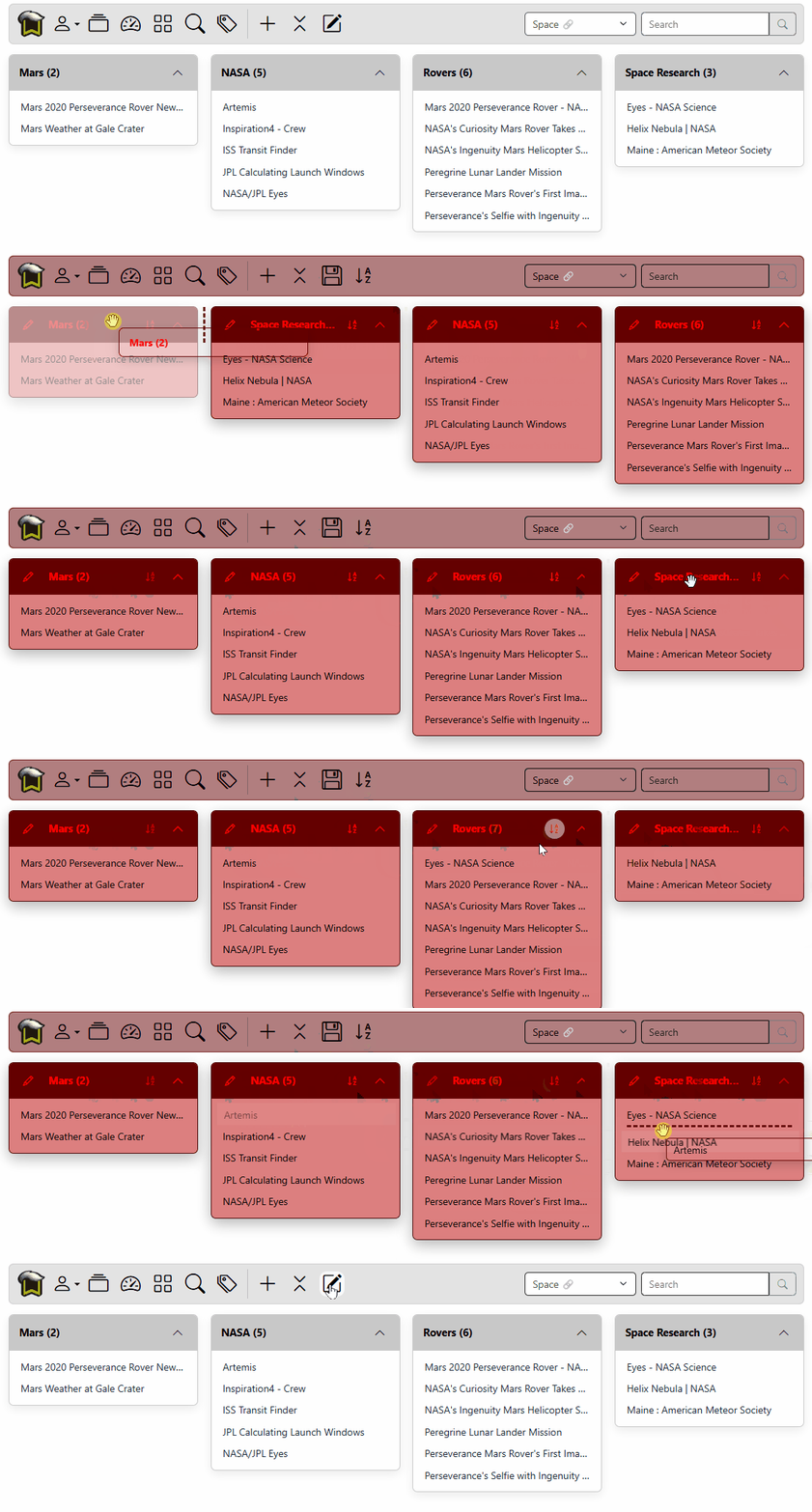
Reorder Topics
All topics and bookmarks are alphabetically ordered. If that isn't what you need, you can manually order them.
Switch into Edit mode by clicking the Edit button in the icon bar. When you do, you will notice Edit changes to Save and a Sort Topics button appears next to it. Clicking sort will return the topics to an alphabetically ordered list.
Click and drag a topics title. As you drag it around, you will see a vertical dotted insert at line showing you where the topic will be inserted.
Click the Save button to return to view mode.
Reorder Bookmarks
Like the topics, bookmarks are order alphabetically. If you wish to change the order, click the Edit button in the icon bar. In addition to the sort topic button, you will also see a Sort Bookmarks button in the header of each topic. Clicking that will return the bookmarks to an alphabetically ordered list.
Click and drag a bookmark. As you drag it around, you will see a horizontal dotted insert at line that shows you were the bookmark will be inserted. You can also drag the bookmark between topics.
If are moving a bookmark from one topic to another, and you you have a lot of topic cards, you can collapse all but the one you are pulling a bookmark from, then drag the bookmark to the closed topic. It will insert the bookmark at the end of the topics bookmark list.
Click the Save button to return to view mode.