The Grid
Welcome to the grid. This is where clusters of information are brought into order. Select multiple bookmarks, apply bulk actions, and filter the visible data down to the exact set you want to work on.
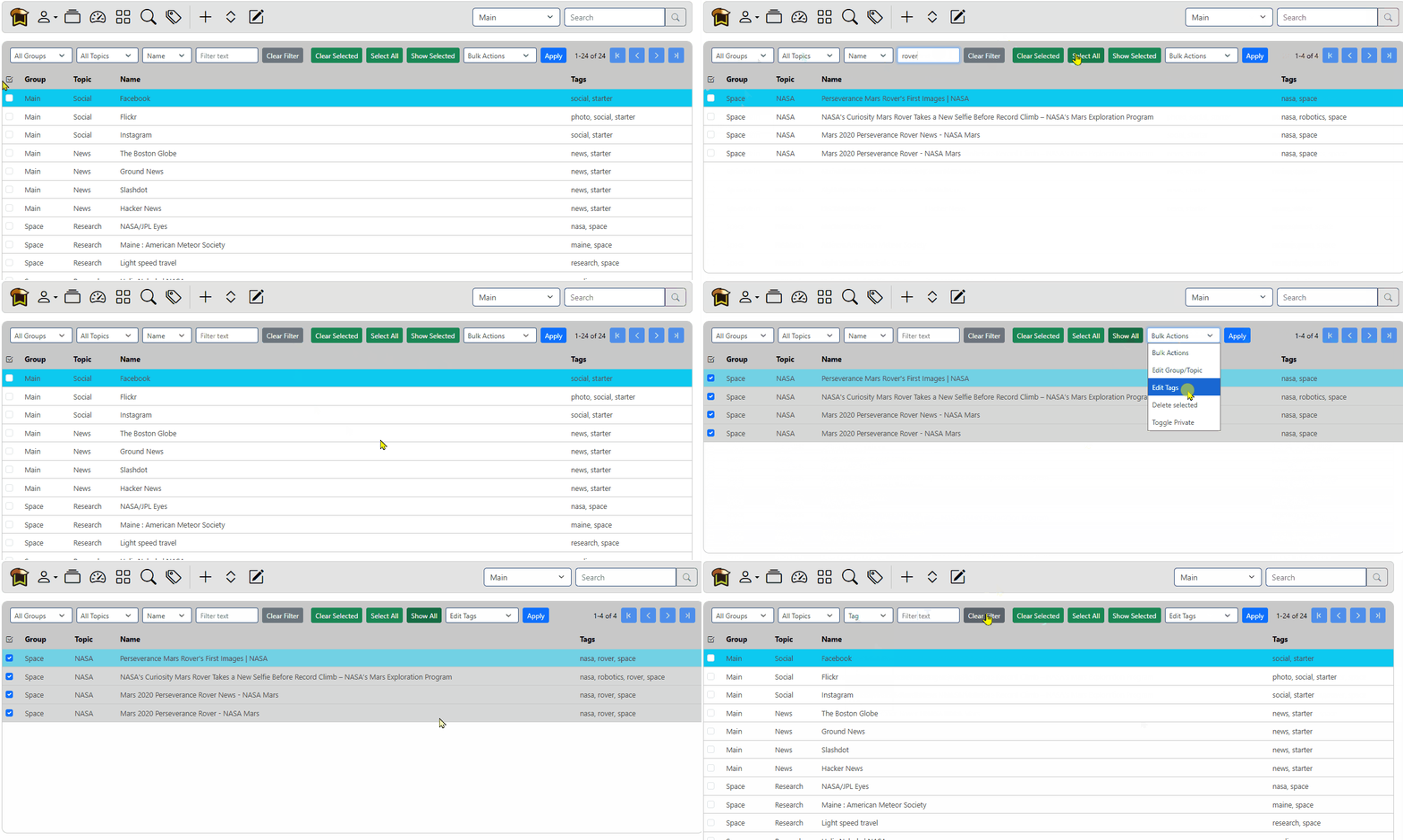
On page load, the grid sorts by Date Created, so your newest entries are at the top. Click any column heading to re-sort the grid.
By default, the grid displays Group, Topic, Name, URL, Tags, Notes, Date Last Accessed, and Date Created. You can hide columns at any time from the Settings page.
The grid displays bookmarks in blocks of 100. Use the navigation buttons at the top right of the grid to move through the next or previous set.
If you want to keep seeing hidden bookmarks in the grid, make sure Show Hidden is enabled in your user menu. If it is off, the bookmark remains in the system, but outside your current view.
The UI
A wonderful selection of things to click. You should already be familiar with the Icon Bar at the top. Under that is the grid toolbar which contains the filter and navigation buttons.
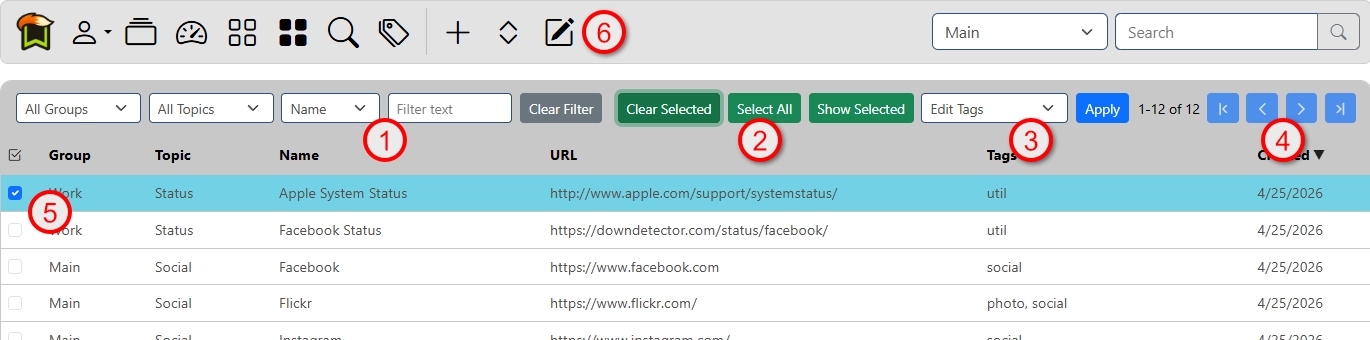
| # | Description |
|---|---|
| 1 | Filter dropdowns. Filter by group, topic, or text |
| 2 | Clear, select and show your selected bookmarks |
| 3 | Bulk actions, select the action from the dropdown, click Apply. |
| 4 | Move to the previous or next page of bookmarks |
| 5 | Checkboxes to select a bookmark for bulk actions |
| 6 | Edit Bookmark button in the icon bar. Click to edit the focused bookmark. |
Navigate
Movement through the grid depends on two states: Focused and Selected. A Focused bookmark is the active entry, highlighted in cyan. A Selected bookmark is marked with the checkbox on the left.
Use the keyboard to move through the grid. Double-click a bookmark, or press Enter, to open its URL.
| Shortcut | Action |
|---|---|
| Arrow Up / Arrow Down | Move focus up or down in the bookmark list |
| Arrow Left / Arrow Right | Move to the previous or next page |
| Double-click or Enter | Open the focused bookmark URL |
| X | Toggle the selected checkbox |
| T | Open the Edit Tags dialog |
| G | Open the Edit Group/Topic dialog |
| P | Toggle the Hidden flag |
| E | Edit the focused bookmark |
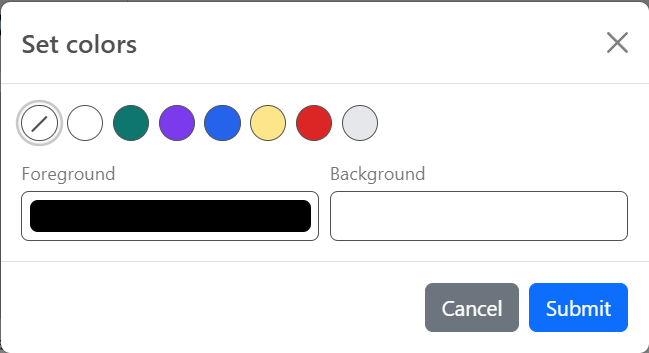
| C | Edit the color of the selected bookmarks |
| Delete | Purge the selected bookmarks |
Filter
This is where you narrow the signal and reduce the noise. The filter controls at the top left of the grid let you bring the right bookmarks into view in real time.
Use the Group and Topic dropdowns to restrict the grid to a specific part of the system. Select a group first, and the available topics will narrow to match.
Use the Name dropdown to choose what field you want to filter by, then enter text in Filter text. The grid updates in real time as you type.
This is especially useful when you need to isolate a specific Tag or quickly reduce the grid to a smaller working set.
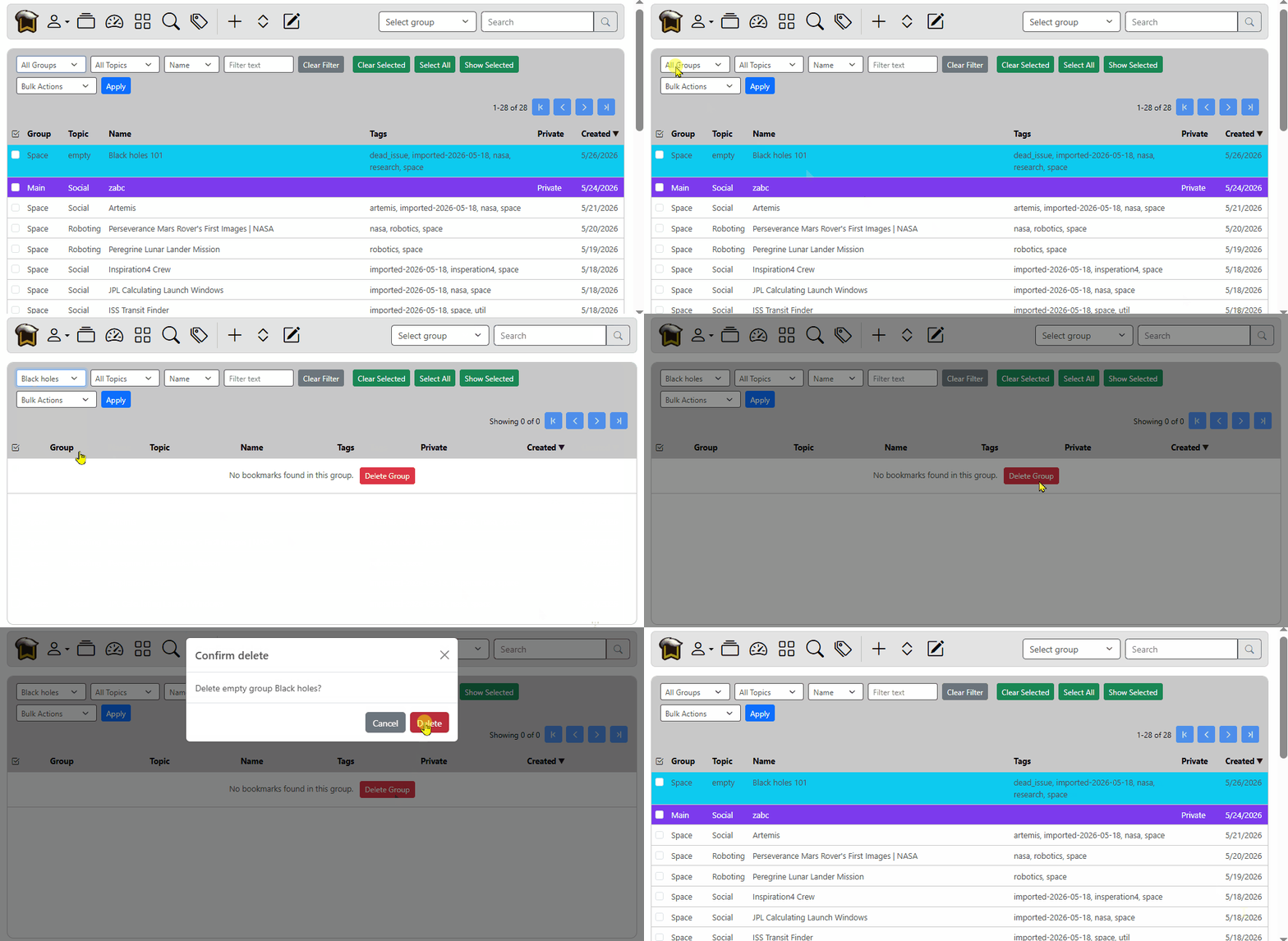
Purging empty groups and topics
If the selected group or topic contains no bookmarks, a Delete button will show so you can purge the empty node from the system.
Bulk Actions
This is where disorder is brought into alignment. Use bulk actions to bring structure to the data and clarity to the grid.
It is a really good idea to click the Show Selected button before performing any bulk actions. That way you can see what is being operated on. I can't tell you how many times I did bulk operations on other selected bookmarks that were not showing. It's how that button came to light.
Select the bookmarks you want to update, choose a Bulk Action, and click Apply.
| Bulk Action | Description |
|---|---|
| Edit Group/Topic | Reassign bookmarks to a new group or topic, or clear them |
| Edit Tags | Add, remove, or replace tags |
| Rename group | Rename an existing group name |
| Delete selected | Sometimes you have to purge stray data from the system |
| Toggle hidden | Set or clear the hidden flag |
| Select color | Set selected bookmark colors color |
| Export selected | Export selected bookmarks from the grid to a CSV or HTML file |