Dead Links
Pro feature You can have the system kick a job off to check your bookmarks for dead links. As the job progresses, any problematic bookmarks will have a tag added to it.
Coming soon
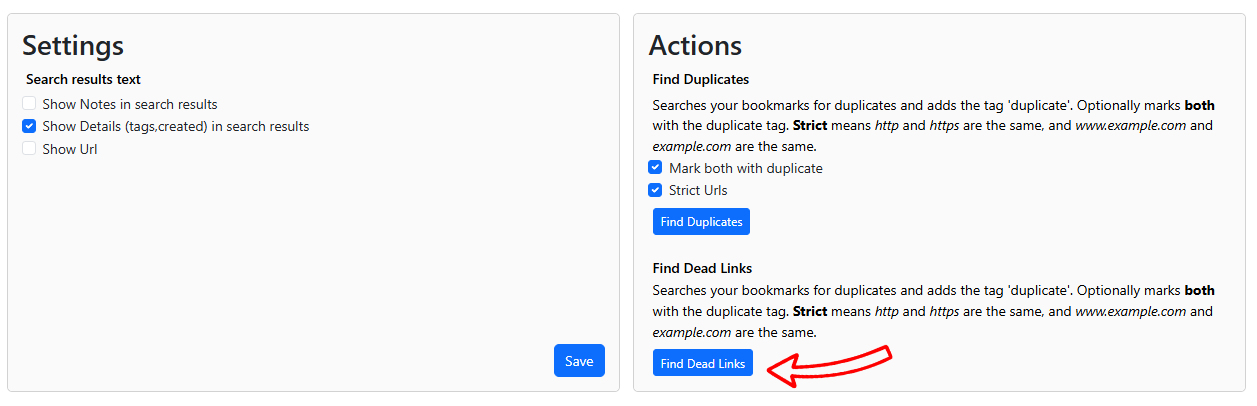
Go to your User menu > Settings. Under Actions, click the Find Dead Links button and this will start the job. You will need to check back to see when it completes, as it might take some time to run through all your bookmarks.
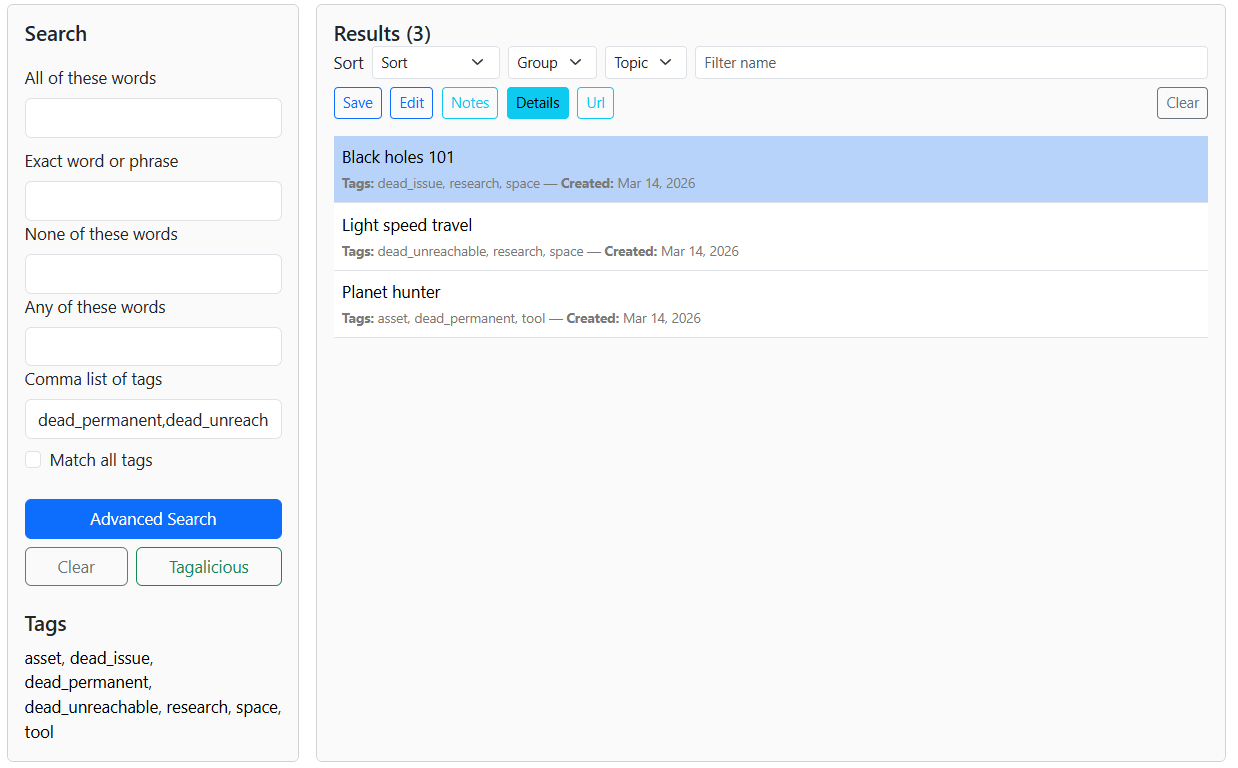
There are a few different states a URL could be in. To handle the different states, the following tags will be added to a bookmark. You can find them easily by doing a search in advanced search, or in the grid by filtering by a 'dead' tag.
| Tag | Meaning |
|---|---|
| dead_unreachable | The server was unreachable. This might be a DNS issue, or a server capacity issue. Could be temporary, and worth trying again later. |
| dead_issue | While the server could be reached, there was a server error reported. It would be worth checking again later. |
| dead_permanent | The server reported the page is gone. |
If you rerun the job later, and a bookmark already had a dead_unreachable or dead_issue tag, the bookmark will be marked dead_permanent. It's a good idea to wait a few days to a week before rerunning.
The following shows sample bookmarks that are reported as various states of dead.